Follow these simple steps to install and set up SeeDesktop. עקבו אחר השלבים הפשוטים הבאים כדי להתקין את SeeDesktop.
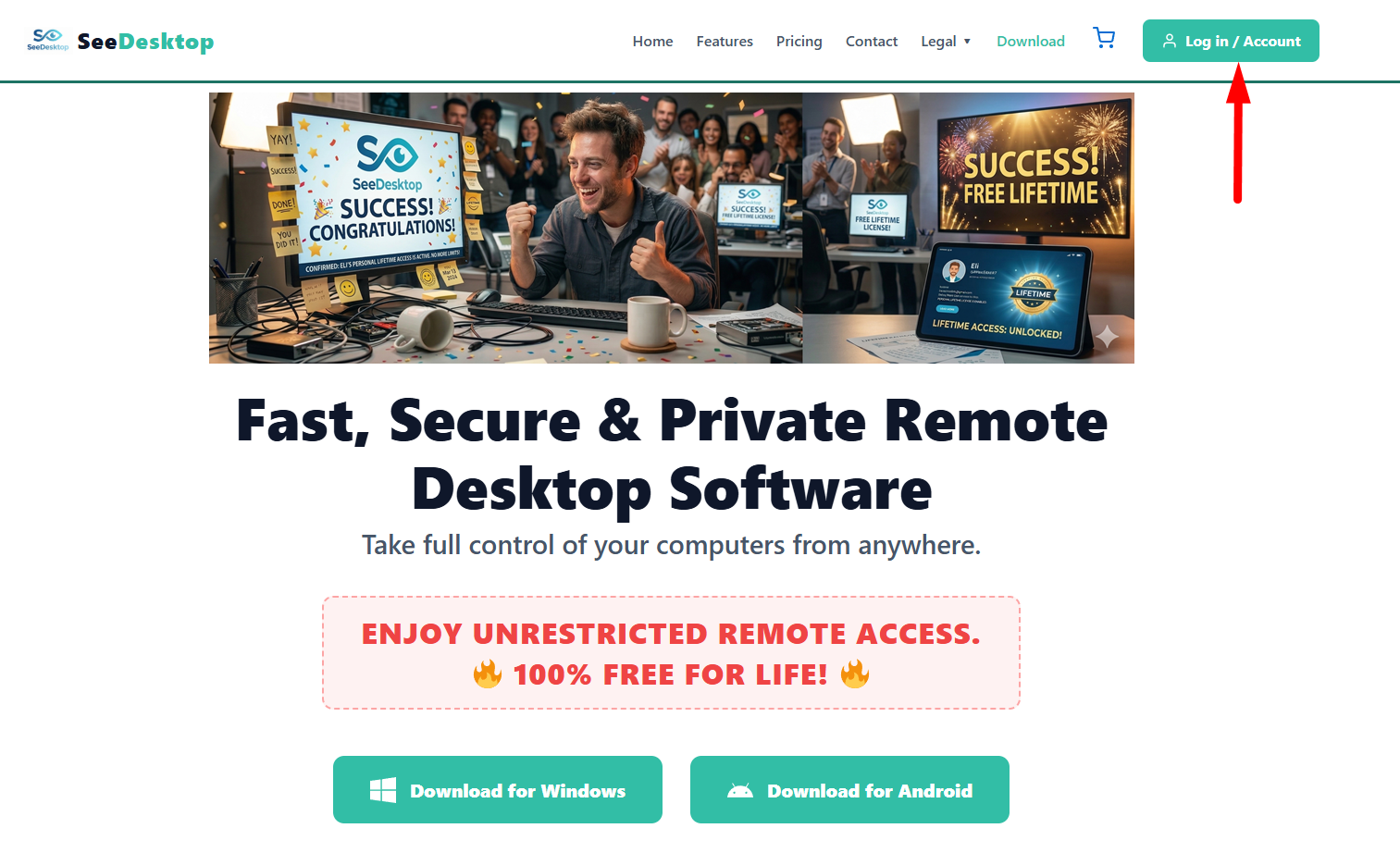
Go to our downloads page or homepage and click Download for Windows. A file named SeeDesktop_setup.zip will be downloaded to your computer.
היכנסו לדף ההורדות או לדף הבית שלנו, ולחצו על הכפתור הורדה ל-Windows. קובץ בשם SeeDesktop_setup.zip יירד למחשב שלכם.
Double-click the downloaded ZIP file to open it. Inside, you will find the installer file: SeeDesktop_setup.exe. Double-click it to begin the installation.
פתחו את קובץ ה-ZIP שהורדתם בלחיצה כפולה. בתוכו תמצאו את קובץ ההתקנה SeeDesktop_setup.exe. לחצו עליו פעמיים כדי להתחיל.
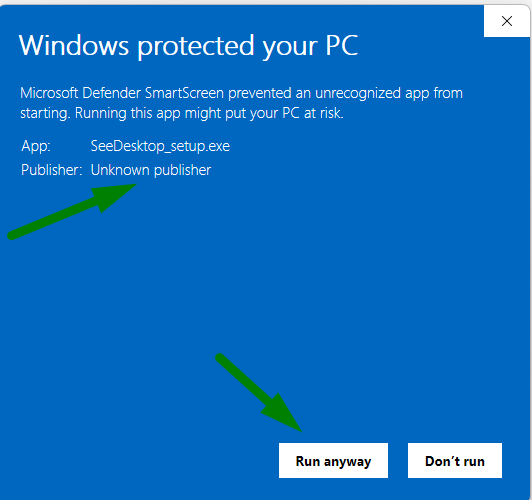
Because we are finalizing our digital certificate, Windows may show an "Unknown Publisher" warning. This is NOT a virus warning (if it were a virus, your antivirus would state so clearly). Simply click "More info" and then "Run anyway".
מכיוון שאנו בתהליך הסדרה סופי של התעודה הדיגיטלית, ווינדוס עשוי להציג אזהרה של "מפיץ לא ידוע". הבהרה: זו אינה התרעת וירוס (אם היה וירוס, האנטי-וירוס היה רושם זאת מפורשות וחוסם מיד). לחצו על "מידע נוסף" (More info) ולאחר מכן על "הפעל בכל זאת" (Run anyway).
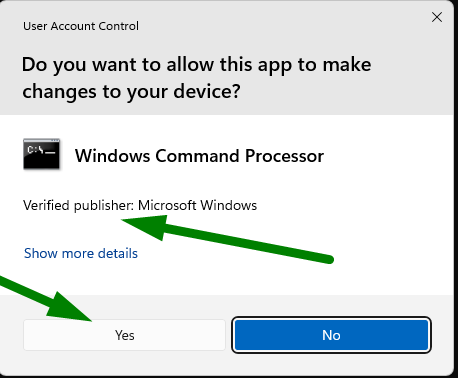
A system window will pop up asking for permissions to make changes to your device. You must click "Yes". Remote control software requires administrative access to use your screen and keyboard—this is a standard procedure for all remote desktop apps.
כעת יפתח חלון הרשאות של המחשב (UAC). חובה לאשר וללחוץ "כן" (Yes). הסיבה לכך היא שהתוכנה מפעילה שירות שזקוק לגישה למסך ולמקלדת כדי לאפשר התחברות מרחוק – זוהי פרוצדורה סטנדרטית והכרחית של כל אפליקציית שליטה מרחוק.
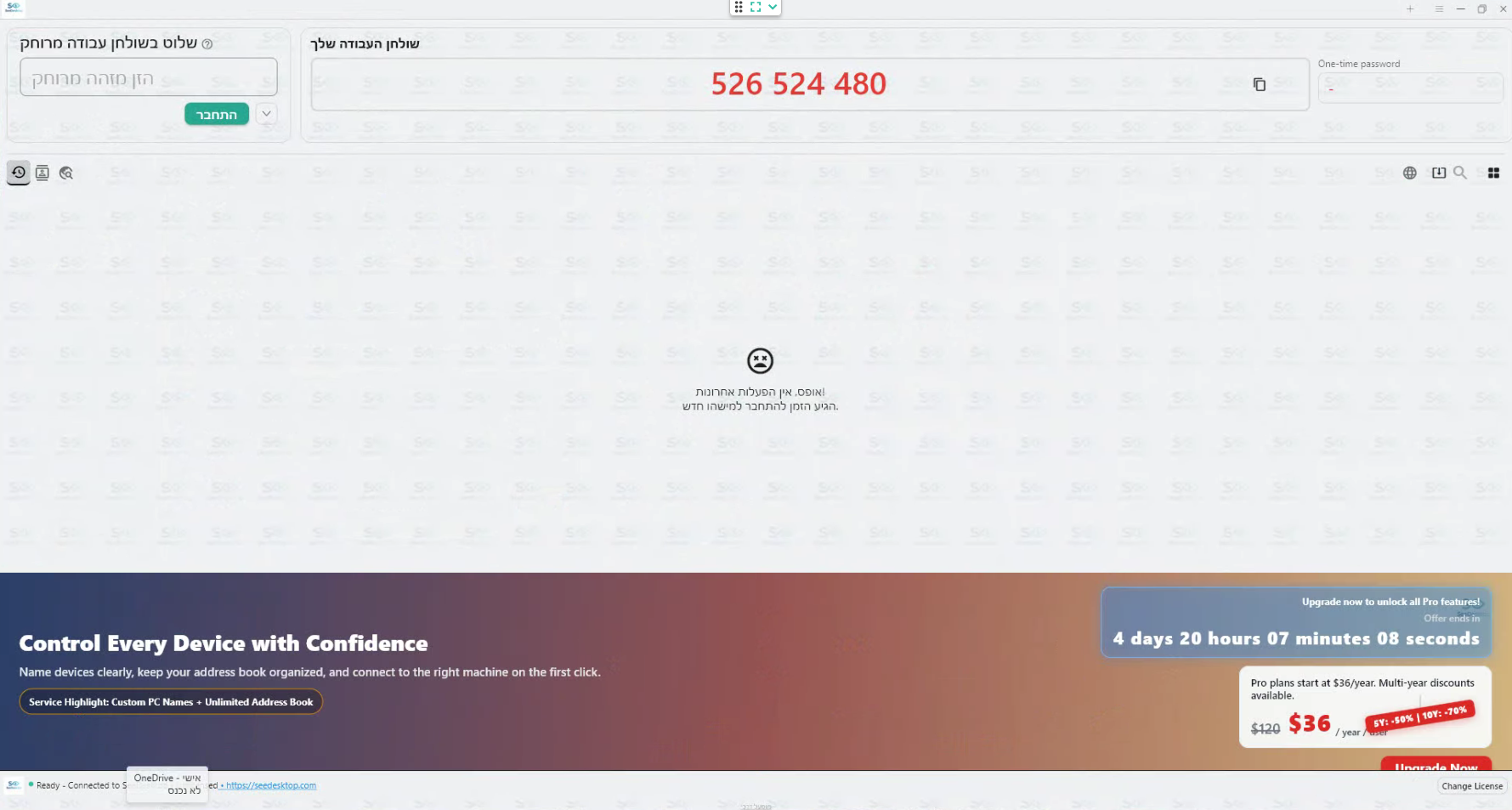
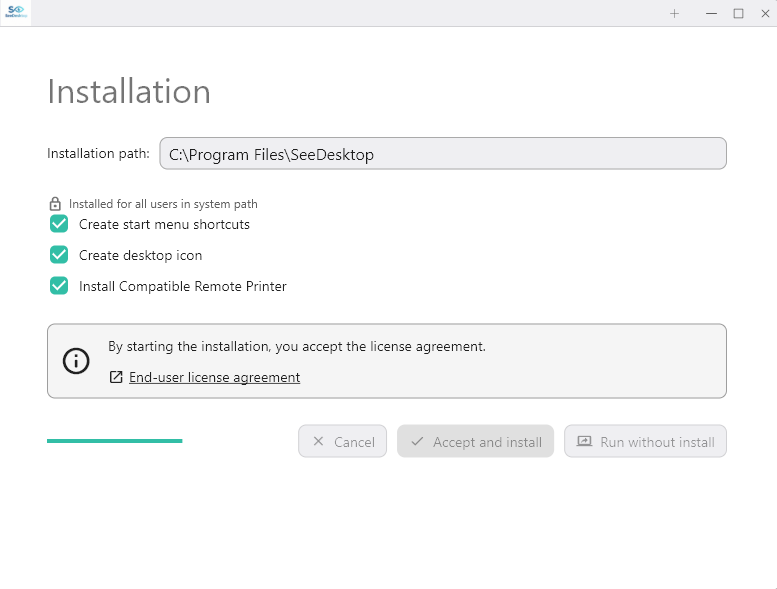
The setup will run and install SeeDesktop. Once finished, the app will open cleanly without any code required. You can use it as is right away.
תוכנית ההתקנה תרוץ ותתקין את התוכנה למחשב. בסיום, התוכנה תיפתח בהתקנה נקייה ללא קוד, וניתן להשתמש בה גם כך, בדיוק כמו עם הקוד החינמי.


Follow these quick steps to generate your personal activation code. עקבו אחר השלבים הקצרים הבאים כדי להנפיק את קוד ההפעלה האישי שלכם.
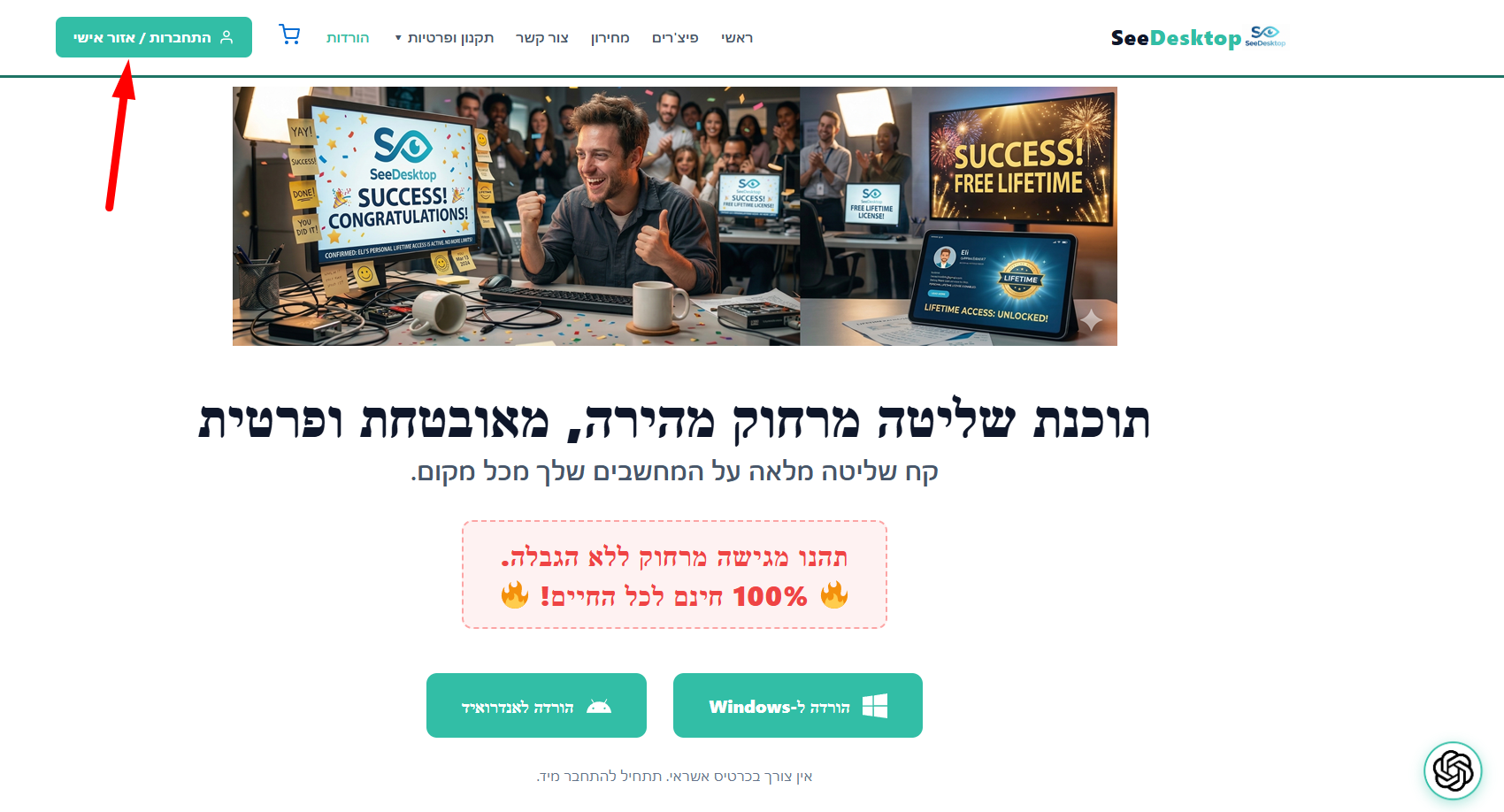
Create a quick account (or log in) to access your dashboard.
צרו משתמש בחינם (או התחברו) לאזור האישי.
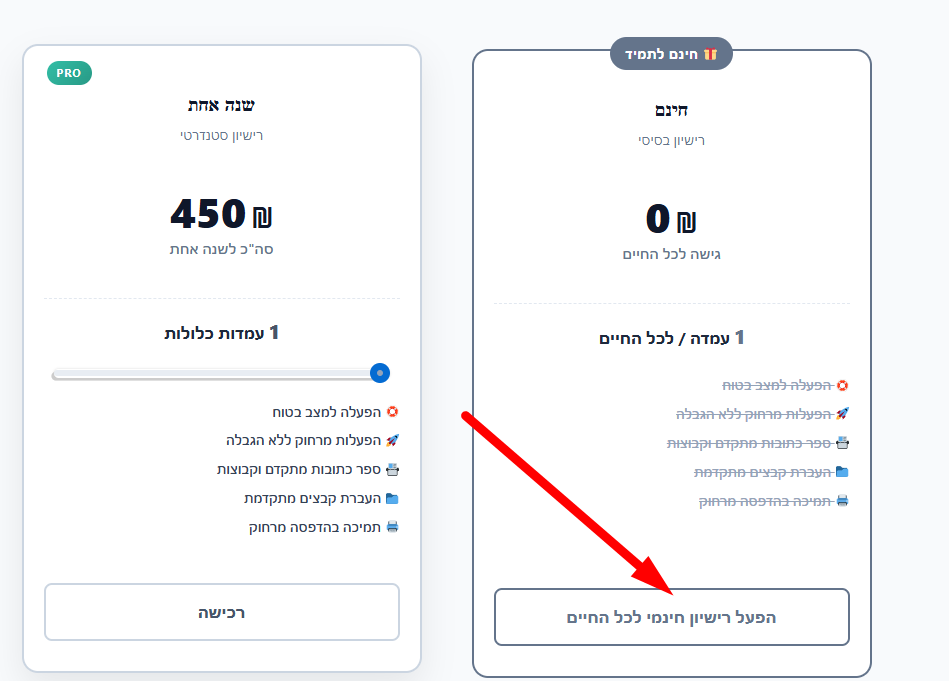
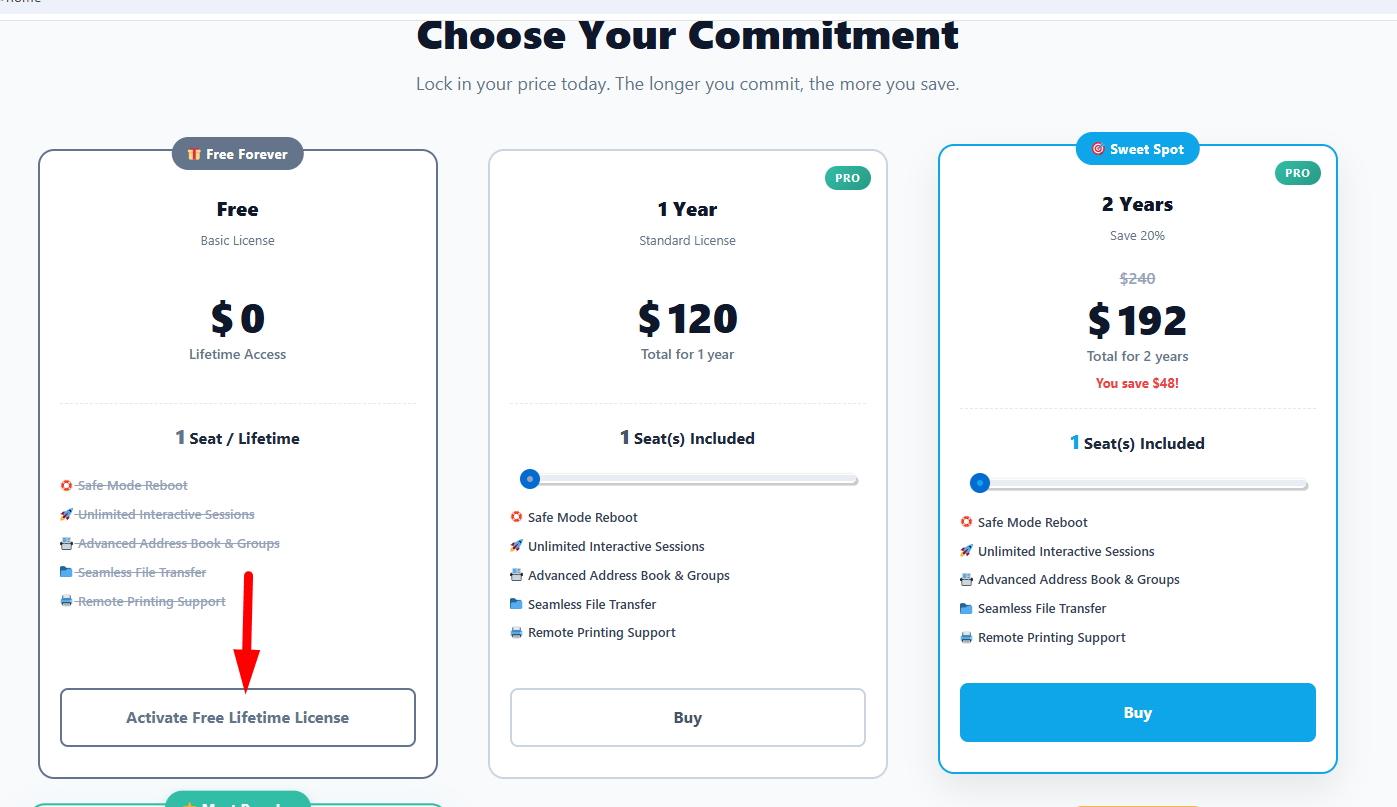
Navigate to the Pricing page and click "Activate Free License".
בעמוד המחירון לחצו על "הפעל רישיון חינמי".
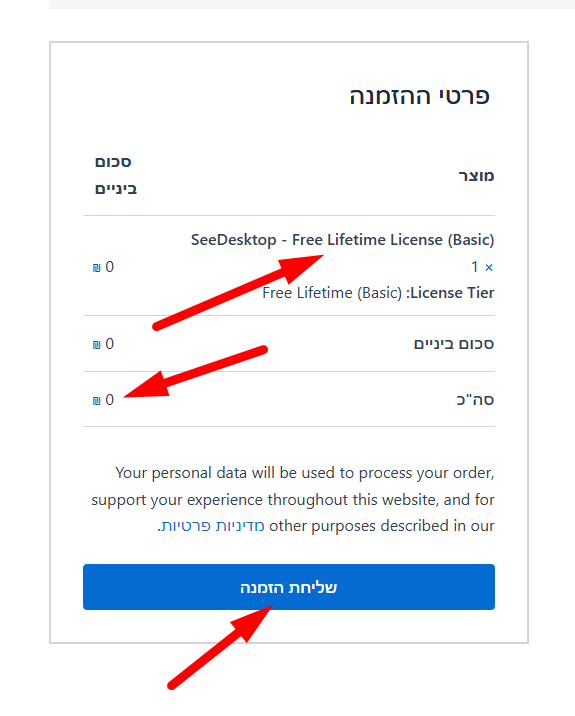
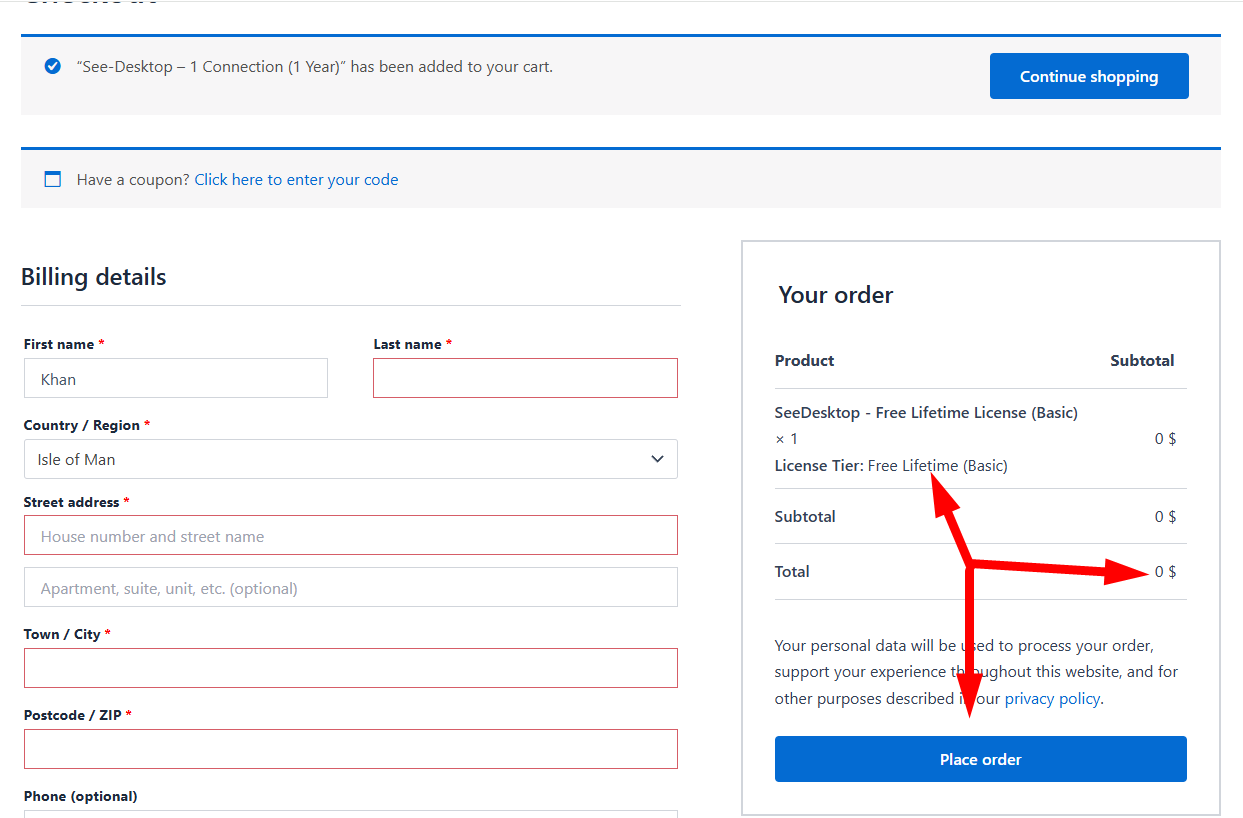
Continue to checkout. It costs exactly $0.00!
המשיכו לתשלום. העלות היא בדיוק 0 ש"ח!
Click "Place Order". No credit card details needed.
לחצו על "שלח הזמנה". ללא פרטי אשראי כלל.
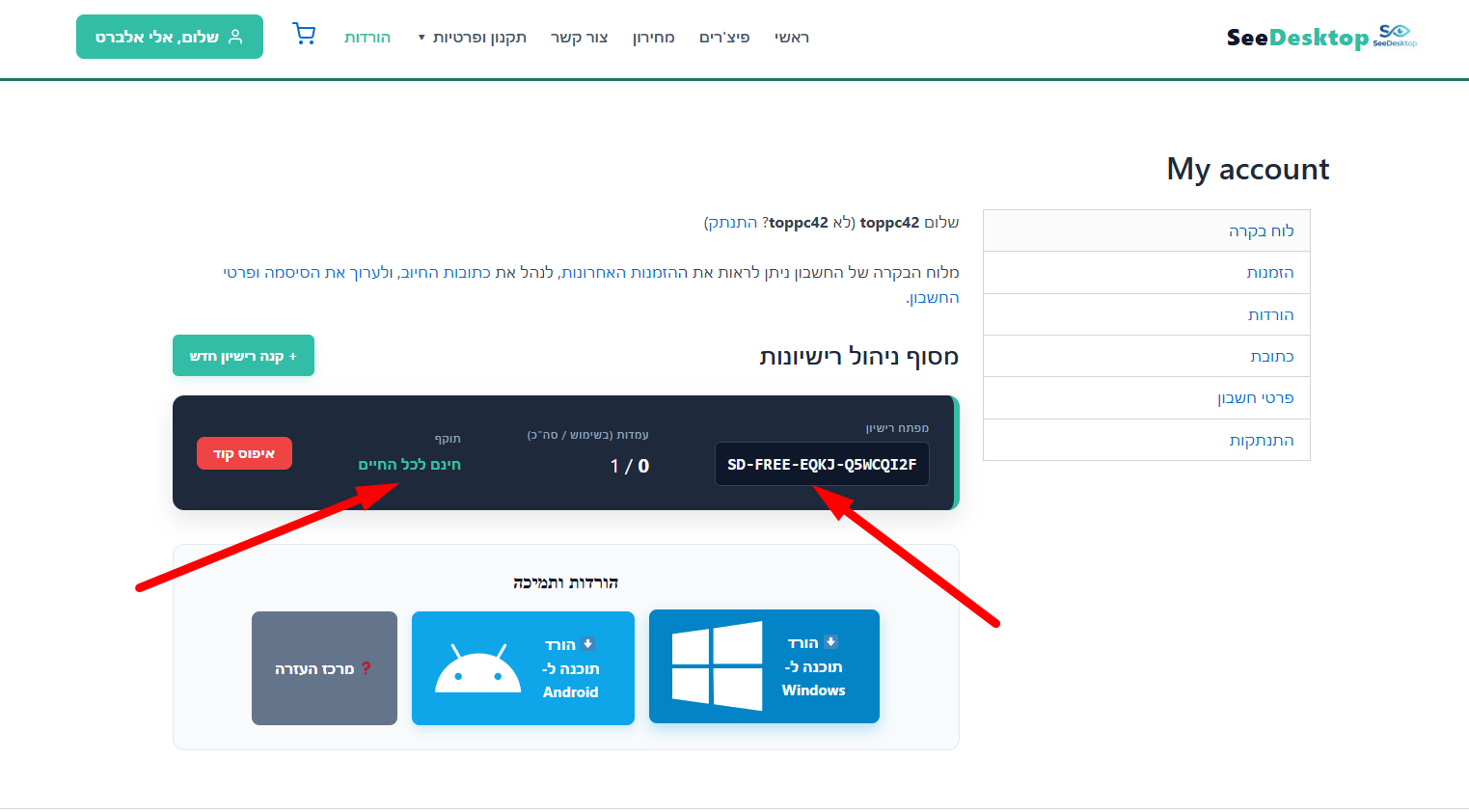
Copy your code from the dashboard and paste it into the app!
העתיקו את הקוד מהאזור האישי והדביקו בתוכנה!
Choose the method that works best for you: בחרו בדרך הנוחה לכם ביותר:
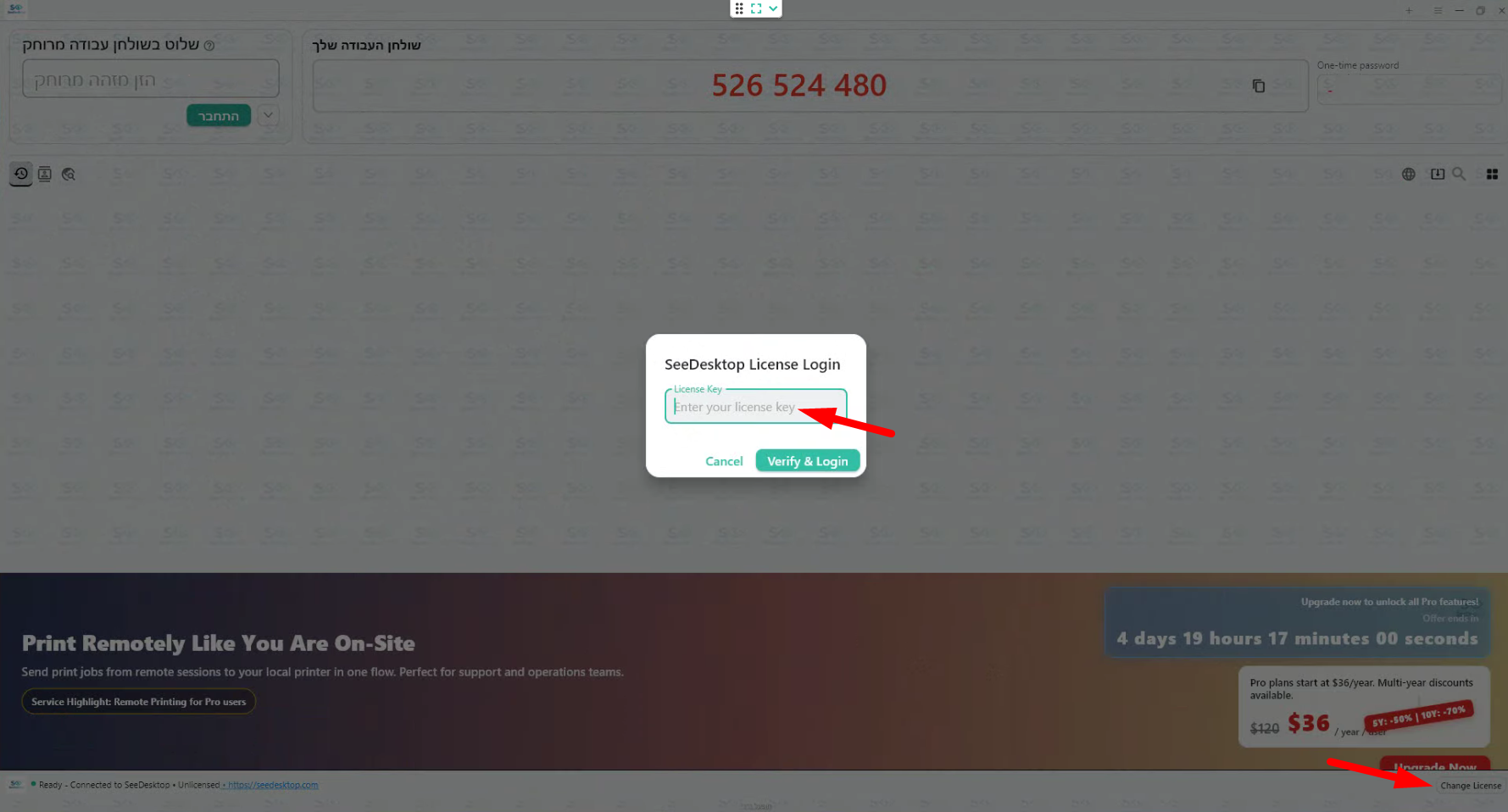
At the bottom right of the app, click the Change License button. Paste your code into the pop-up box, and your license is instantly active! בתחתית התוכנה בצד ימין, לוחצים על הכפתור Change License. מדביקים את הקוד שקיבלתם לתוך התיבה שנפתחת – וזהו, הרישיון מופעל מיידית!
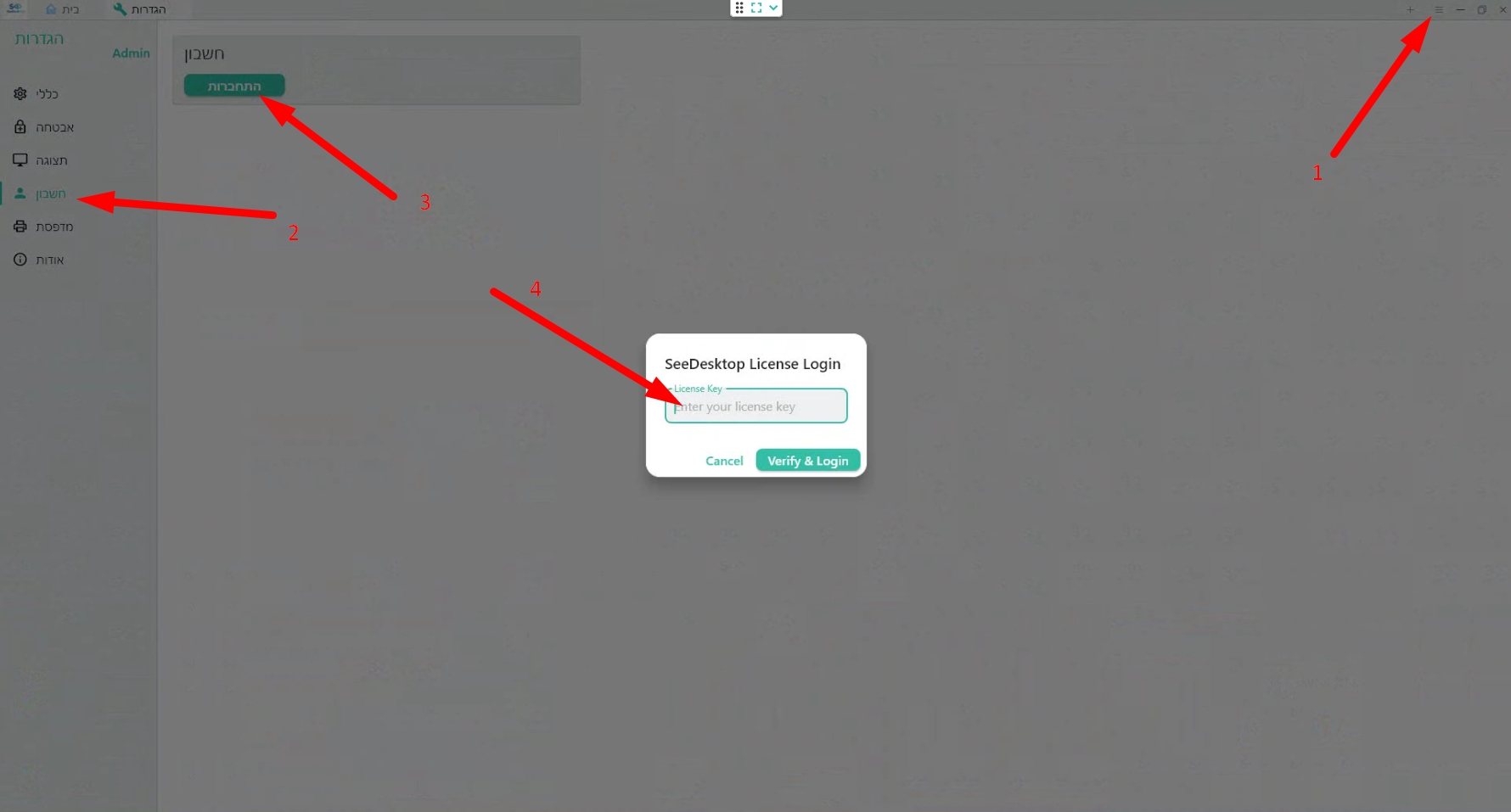
Open the app settings (top right menu), select the Account tab, and click Login / Unlock. Enter the personal activation code you received from your web dashboard. נכנסים להגדרות התוכנה (סמל התפריט למעלה), בוחרים בלשונית Account (חשבון) ולוחצים על Login. מכניסים את הקוד האישי שקיבלתם בלוח הבקרה שלכם באתר.

תמיכה טכנית / נציג חי